 Retro
RetroGetting started
From picking a folder to your first save, it takes a few minutes.
Get your game files ready
RetroGenY does not include or download any games. Use backups of cartridges you own. Supported files:
.gba: Game Boy Advance.gb,.gbc: Game Boy, Game Boy Color
Put them in any folder on your phone. Subfolders by series or system are fine.
Choose your games folder
- The first time you open the app, it asks you to choose a games folder.
- In the system file picker, open your games folder, tap "Use this folder" and allow access.
- Back in the app, your games are listed. Subfolders show up as folders you can open.
The app only reads and writes the folder you chose. To use a different folder later, choose it again in Settings.
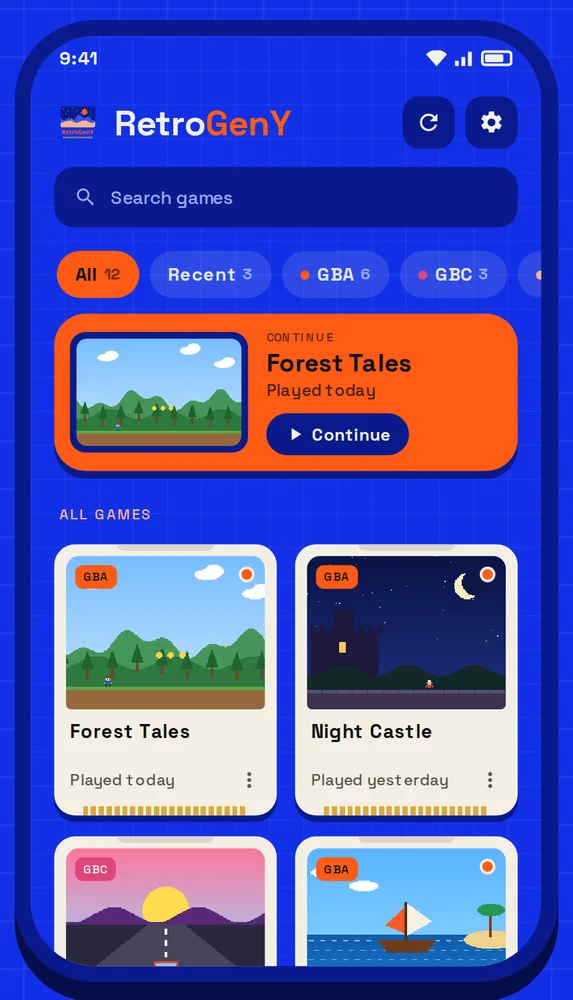
The game list. The last game you played sits at the top with a Continue button.
Covers
A game's cover comes from one of three places, checked in this order:
- An image (png or jpg) with the same name as the game, in a
coversfolder next to it. - A screenshot taken with "Screenshot" in the game menu, or an image chosen from the game card's ⋮ menu › Cover › "Choose from gallery". Both are saved to
coverstoo. - An automatic cover: after you play a game without a cover for a minute, a frame is captured. It is kept inside the app, never written to your folder, and can be turned off in Settings.
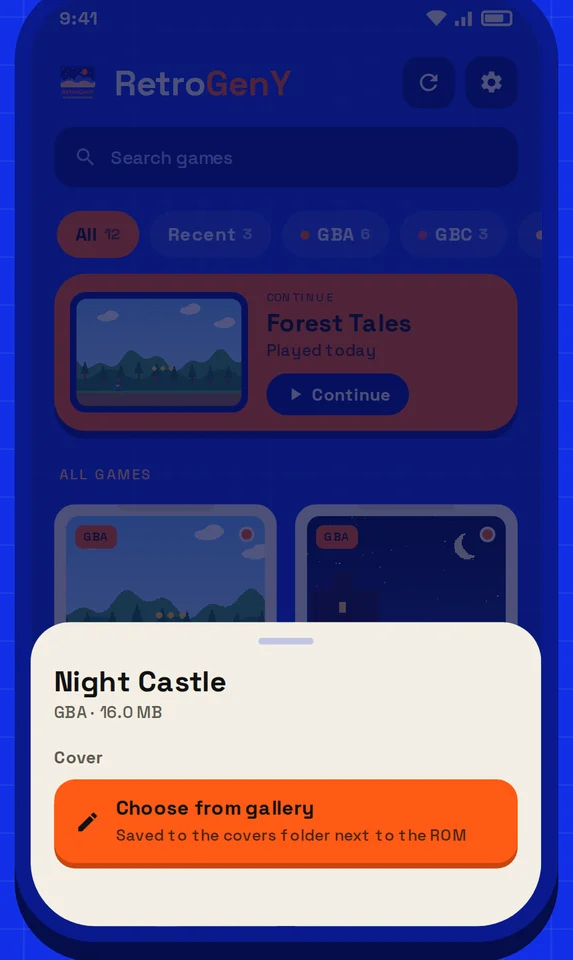
Game card ⋮ menu › Cover › "Choose from gallery".
Saving
In-game saves
Saving inside the game (like "Save" in Pokémon) writes a .sav file with the game's name, next to the game. Copy it along with the game to keep playing on another phone.
Save states
Save and load anywhere from the game menu. Every slot has a thumbnail, and there's an auto-save slot written when you leave a game. If you load the wrong one, tap "Undo" on the banner to go back.
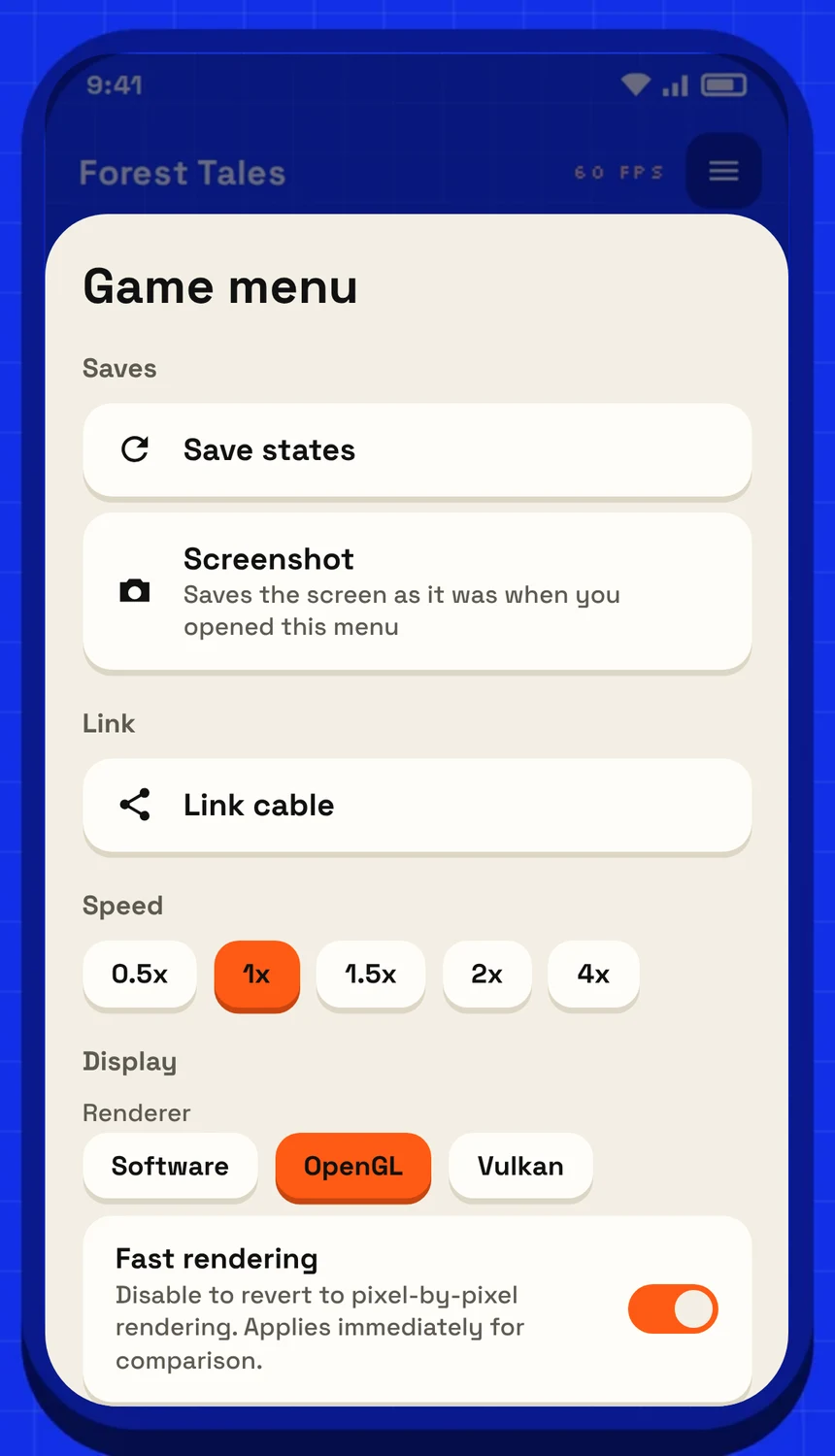
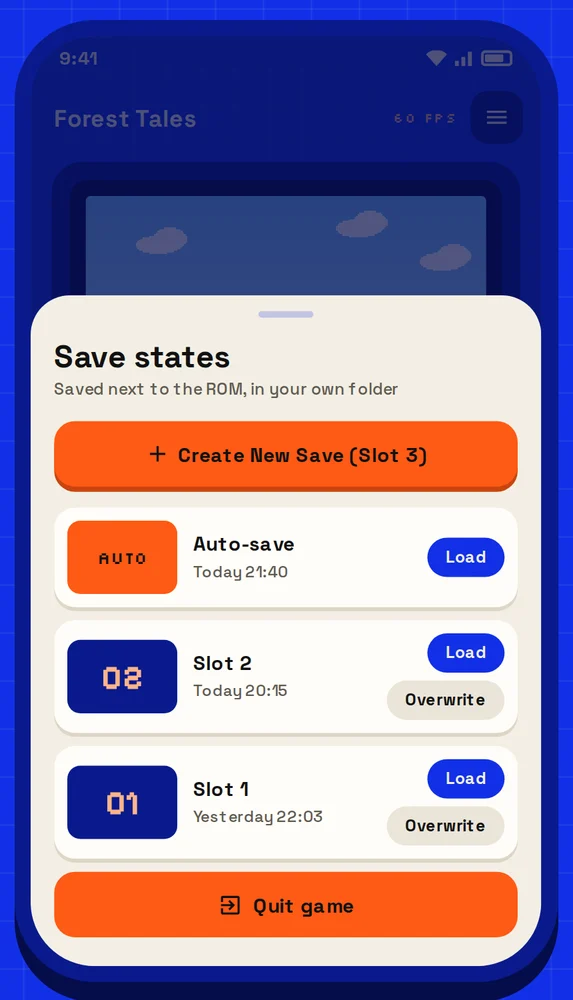
Open the game menu, then "Save states" to make a new save, load one, or undo a load.
Controls
- On-screen buttons: below the screen in portrait, on both sides in landscape.
- Controllers and keyboards: work as soon as they're connected. Remap them in Settings › Gamepad & keyboard buttons; one GBA button can have several keys.
- Screen orientation: switch between portrait, landscape and system from the game menu.
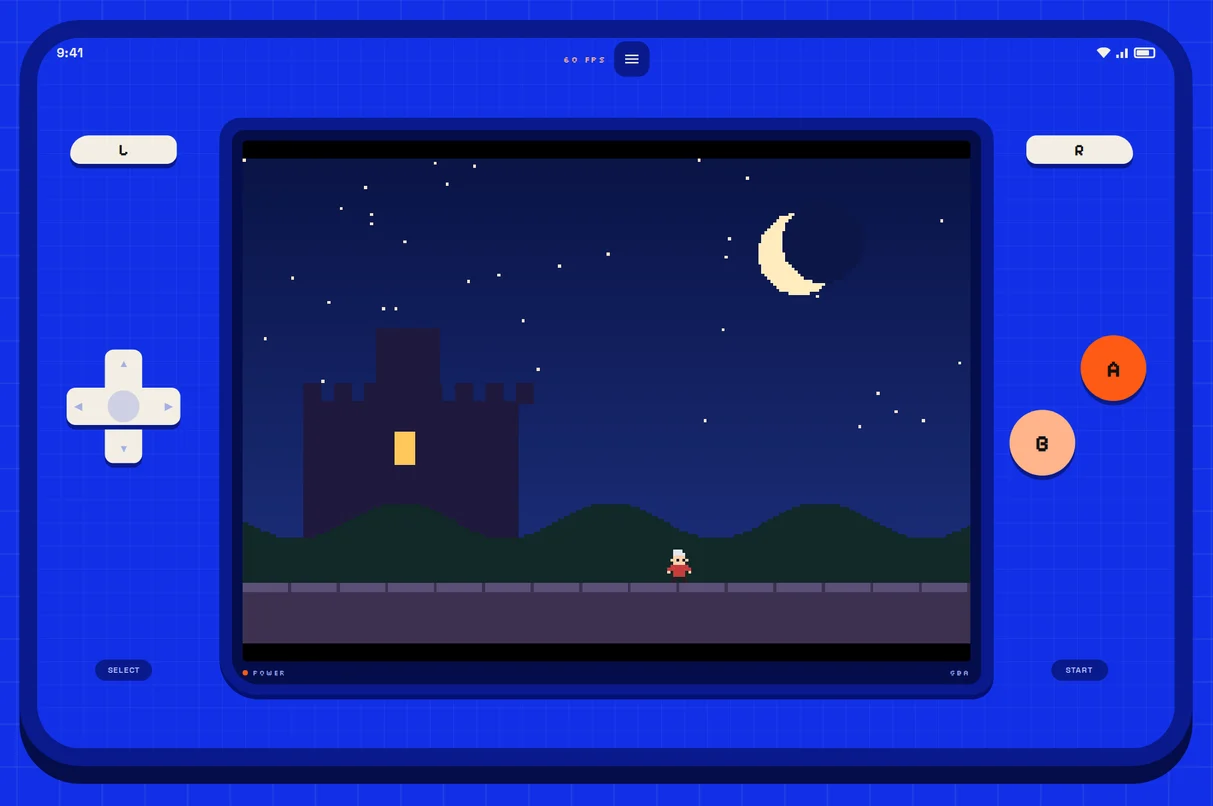
In landscape, the controls move to both sides of the screen.
BIOS (optional)
A replacement BIOS is built in and runs every game. Only a handful of games need the official BIOS, or you may want the boot animation. In that case import your own 16 KB BIOS file in Settings › GBA BIOS.